Why Split PDF Files?
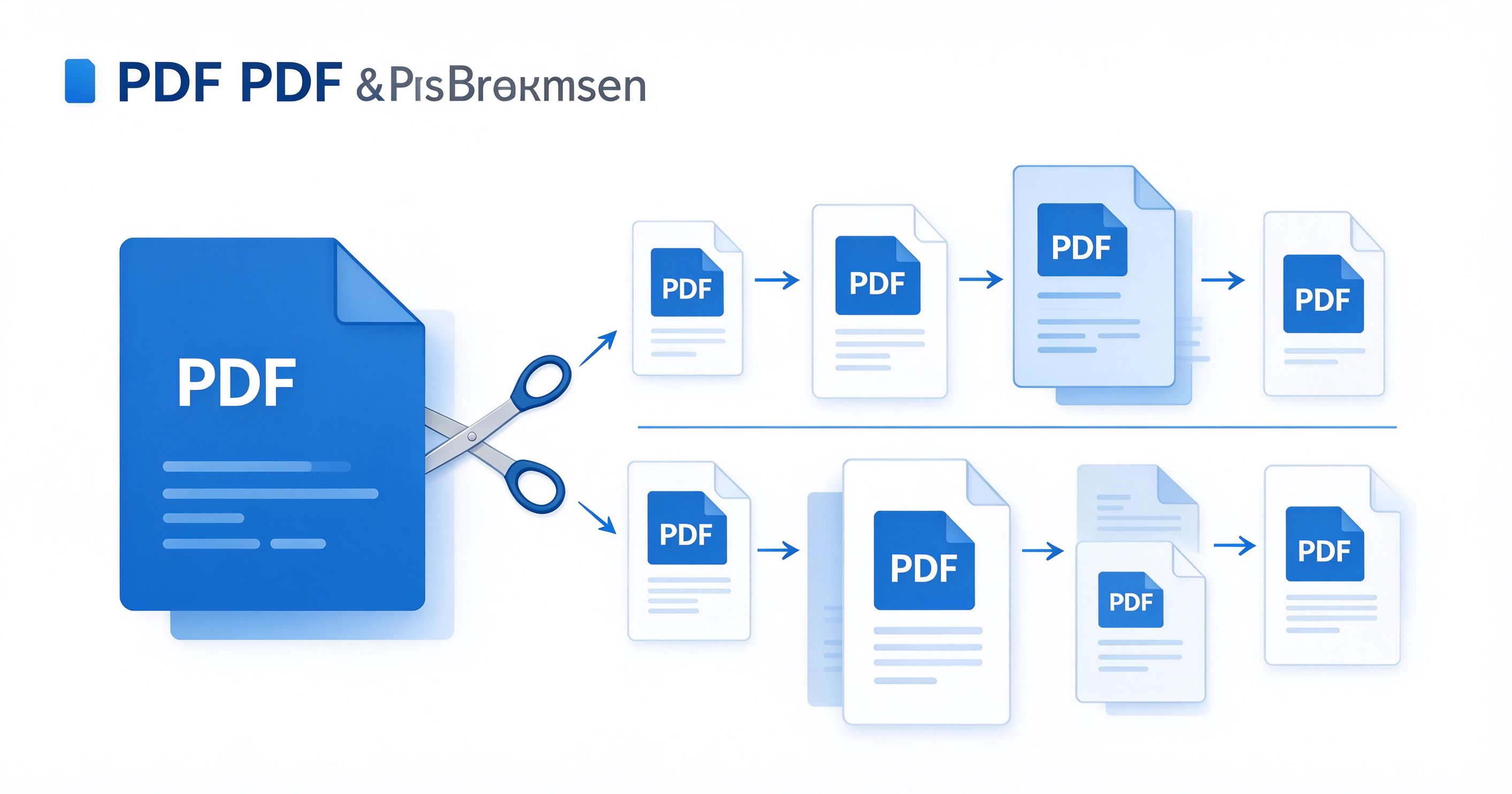
Large PDF files can be cumbersome to share, upload, or navigate. Splitting a PDF into smaller, more manageable pieces makes it easier to extract specific sections, reduce file size for email attachments, or distribute only relevant portions to different recipients.
Method 1: Desktop Software (PDF24 Creator)
PDF24 Creator offers a dedicated "Split PDF" tool that works entirely offline, making it ideal for sensitive documents.
- Open PDF24 Creator and select "Split PDF" from the tool menu.
- Load your PDF by clicking "Choose File" or dragging it into the window.
- Choose split method: split by page ranges, extract specific pages, or split every N pages.
- Enter page numbers or ranges (e.g., "1-5, 8, 10-12") in the designated field.
- Click "Split" to generate the separate files.
- Download each file individually or as a ZIP archive containing all splits.
Method 2: Online Tool (iLovePDF)
iLovePDF provides a visual page-by-page editor that makes splitting intuitive and precise.
- Go to ilovepdf.com and select "Split PDF".
- Upload your PDF from your device, Google Drive, or Dropbox.
- Use the visual editor to click on pages you want to extract, or drag split markers between pages.
- Choose "Extract pages" to pull specific pages, or "Split by ranges" to divide into sections.
- Click "Split PDF" and wait for processing.
- Download the result — extracted pages come as a single file, while range splits come as a ZIP.
Method 3: Mobile App (Adobe Acrobat Reader)
Adobe Acrobat Reader's mobile app includes page organization tools for splitting on the go.
- Open your PDF in Adobe Acrobat Reader mobile app.
- Tap the "Organize Pages" icon (looks like stacked pages).
- Long-press and select the pages you want to extract.
- Tap "Extract" to create a new document from selected pages.
- Save the new file with a descriptive name.
- Repeat for each section you want to split off.
Tips for Best Results
- Plan your splits before starting — note which page numbers correspond to which sections.
- Use descriptive filenames for each split (e.g., "Report_Section1_Intro.pdf").
- Keep the original — always work from a copy, never modify your only source file.
- Check bookmarks — if the original has bookmarks, they won't carry over to splits. Add new ones if needed.
- Consider compression — split files may still be large. Use our compression guide if needed.
Frequently Asked Questions
Can I split a PDF without losing quality?
Yes. Splitting extracts pages as-is without re-encoding, so quality remains identical to the original. The only exception is if you use a tool that applies compression during the split process.
How do I split a PDF into individual pages?
Most tools offer an "Extract every page" or "Split into individual pages" option. In PDF24 Creator, select "Split every page" and it will generate one file per page automatically.
Is it safe to split confidential PDFs online?
For highly confidential documents, we recommend using desktop software (Method 1) that works entirely offline. Online tools upload files to their servers, though most reputable services delete files within 1-24 hours.
Conclusion
Splitting PDFs is a straightforward task with the right tools. Whether you need to extract a single page, divide a document into sections, or break a large file into email-friendly chunks, these free methods have you covered. For more PDF organization tips, explore our PDF Organization category.