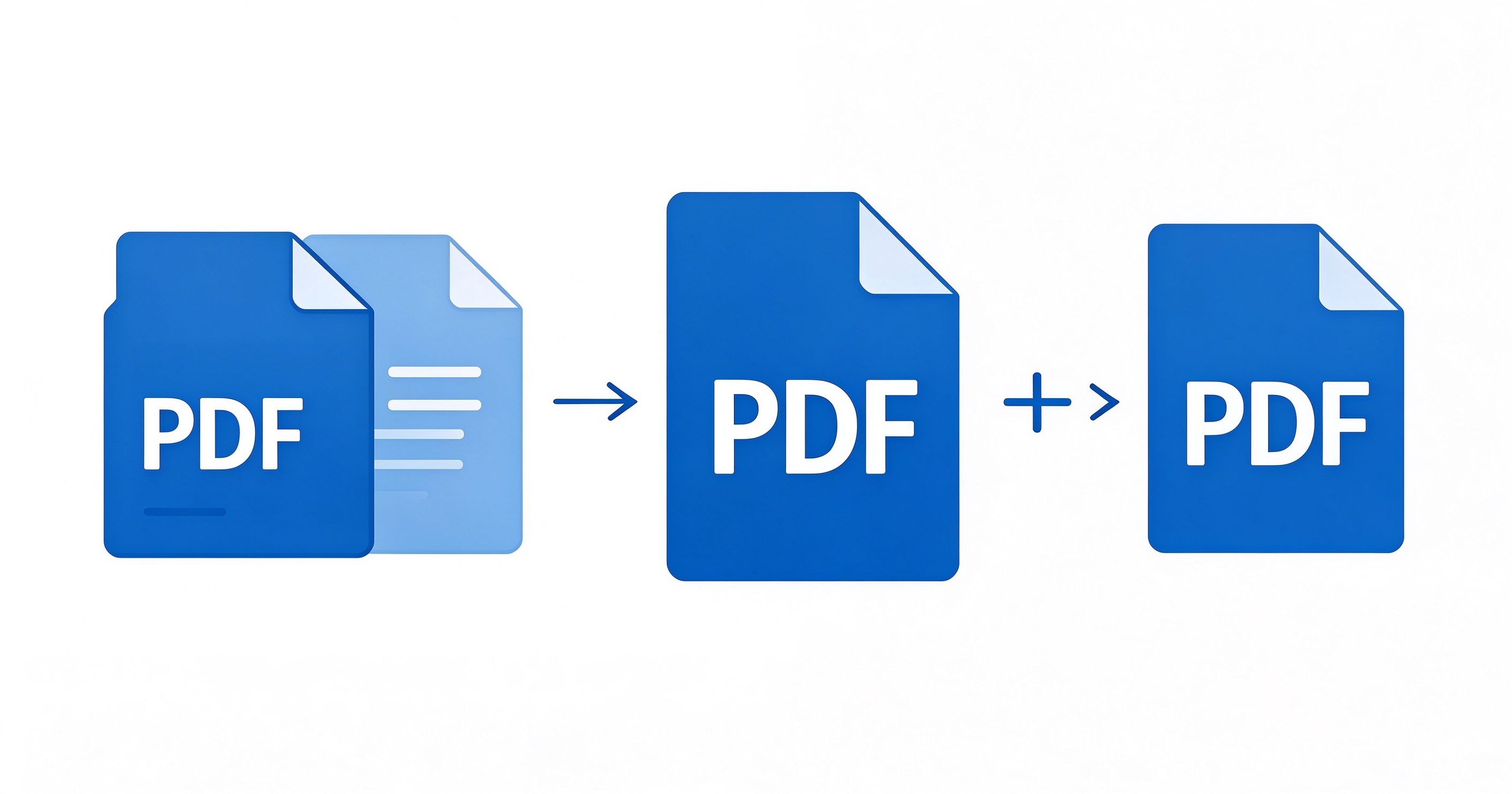
Why Merge PDF Files?
Merging PDFs is one of the most common document tasks. Whether you're combining scanned pages, assembling a report from multiple sections, or bundling invoices for accounting, having a reliable method saves time and frustration.
Common Use Cases
- Combining scanned documents into a single file
- Merging report sections written by different team members
- Bundling invoices or receipts for expense reports
- Assembling legal documents with multiple exhibits
- Creating e-books from separate chapters
Method 1: Desktop Software (PDF24 Creator)
PDF24 Creator is a free, ad-free desktop application for Windows that handles all PDF tasks, including merging.
- Download and install PDF24 Creator from the official website (pdf24.org). It's completely free for personal and commercial use.
- Open PDF24 Creator and select the "Merge PDFs" tool from the main menu.
- Add your PDF files by clicking "Add Files" or dragging and dropping them into the window.
- Reorder the files by dragging them up or down in the list. The order determines how they appear in the merged document.
- Click "Merge" to combine the files. The merged PDF will be generated automatically.
- Save the result by clicking "Save" and choosing your desired location.
Pros: No file size limits, works offline, no uploads to third-party servers, completely free. Cons: Windows only (though a Mac version is available).
Method 2: Online Tool (Smallpdf)
Smallpdf is a popular web-based PDF tool that works in any browser, no installation required.
- Go to smallpdf.com and select "Merge PDF" from the tools menu.
- Upload your files by clicking "Choose Files" or dragging them onto the page. You can also upload from Google Drive or Dropbox.
- Reorder pages using the visual editor. Drag pages to rearrange them, or delete unwanted pages.
- Click "Merge PDF!" to combine the files. Processing usually takes a few seconds.
- Download the merged file or save it directly to Google Drive/Dropbox.
File size limit: Free users can process files up to 2GB per day. Privacy note: Files are uploaded to Smallpdf's servers and deleted within 1 hour. For sensitive documents, consider Method 1.
Method 3: Mobile App (PDF Expert)
For users who need to merge PDFs on their phone or tablet, PDF Expert is a powerful iOS app that handles merging with ease.
- Download PDF Expert from the App Store (free with in-app purchases for premium features).
- Open the app and navigate to the folder containing your PDF files.
- Tap "Select" in the top-right corner and choose the files you want to merge.
- Tap "Merge" at the bottom of the screen.
- Reorder if needed by long-pressing and dragging files.
- Tap "Merge" again to create the combined document.
- Rename and save the merged file to your desired location.
Alternative for Android: "PDF Utils" or "Adobe Acrobat Reader" both offer merge functionality on Android.
Tips for Best Results
- Name files clearly before merging to make reordering easier (e.g., "01_Cover.pdf", "02_Intro.pdf").
- Check page orientation — mixed portrait/landscape pages can look odd in a merged document.
- Compress first if the merged file will be too large. Use our PDF compression guide.
- Add bookmarks after merging for easier navigation, especially for long documents.
- Verify the result — always open the merged file and scroll through to ensure all pages are present and in the correct order.
Frequently Asked Questions
Is merging PDFs free?
Yes! All three methods described above offer free merging. PDF24 Creator is completely free with no limitations. Smallpdf offers a generous free tier. PDF Expert's basic merge feature is free on iOS.
Will merging PDFs reduce quality?
No, merging simply combines files without re-encoding. The quality of each page remains identical to the original. However, if you use online tools that compress during processing, some quality loss may occur.
Can I merge password-protected PDFs?
Yes, but you'll need to enter the password for each protected file during the merge process. Most tools will prompt you for passwords automatically.
How many PDFs can I merge at once?
Desktop tools like PDF24 Creator have no practical limit. Online tools may have limits based on file size or number of files. For very large merges (50+ files), desktop software is recommended.
Conclusion
Merging PDFs doesn't require expensive software or technical expertise. Whether you prefer desktop software for privacy and unlimited use, online tools for convenience, or mobile apps for on-the-go editing, there's a free method that works for you. Choose the method that best fits your workflow, and always verify the merged document before sharing or submitting it.
For more PDF tutorials, check out our complete guides library or explore specific categories like PDF Organization and PDF Optimization.