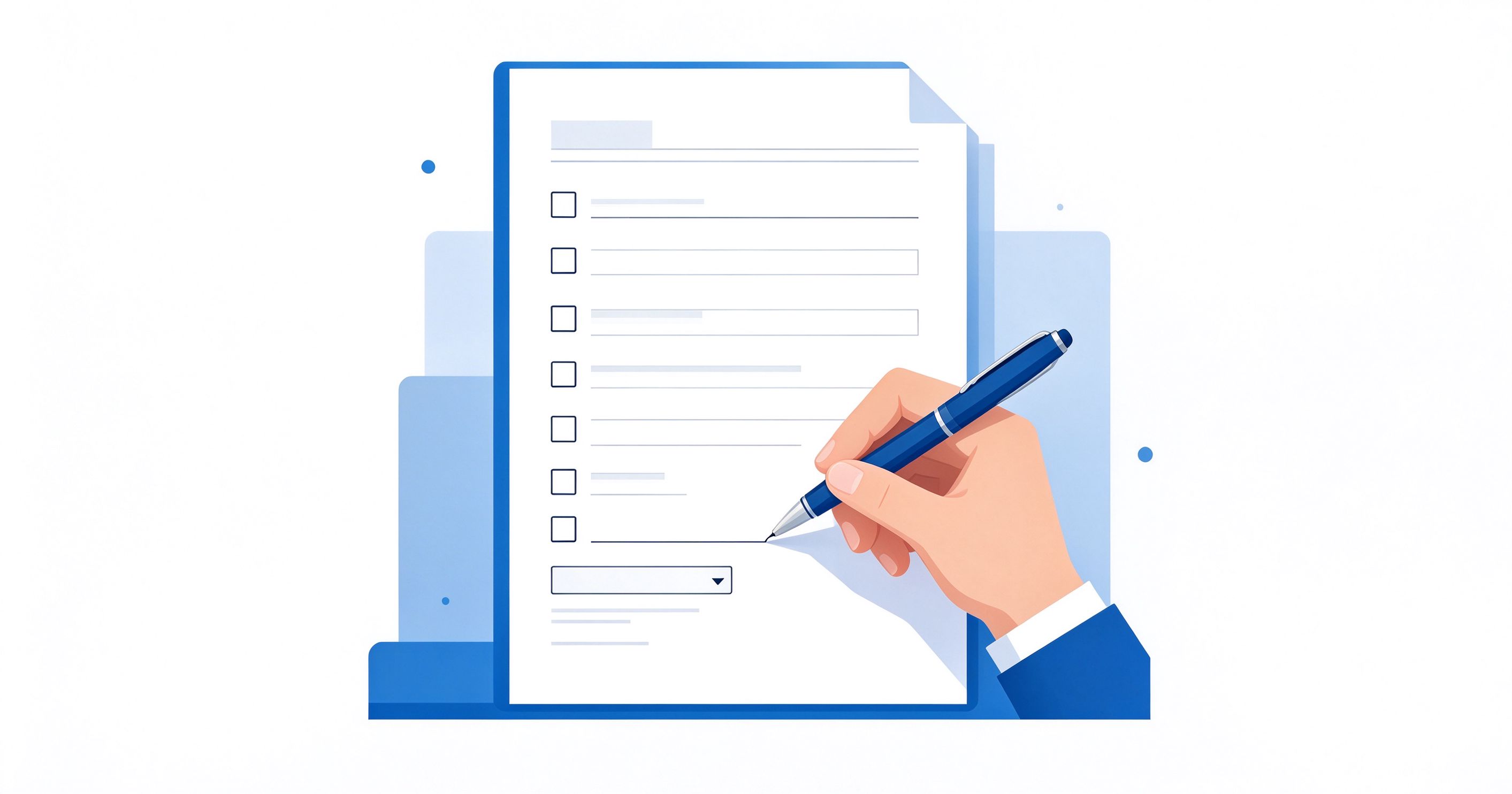
PDF forms are one of the most practical uses of the PDF format. Whether you're filling out a job application, a rental agreement, a medical intake form, or a customer survey, PDF forms provide a standardized way to collect information that looks the same on every device.
Yet many people find PDF forms confusing. Why can't I type in this form? How do I create one? Why does the data disappear when I save? This guide answers all these questions and more.
What Is a PDF Form?
A PDF form (also called an "AcroForm" or "fillable PDF") is a PDF document that contains interactive form fields. These fields can include:
- Text fields: For typing names, addresses, and other text
- Checkboxes: For yes/no or multiple-choice selections
- Radio buttons: For selecting one option from a group
- Dropdown menus: For selecting from a list of options
- List boxes: For selecting one or more items from a scrollable list
- Buttons: For submitting, resetting, or triggering actions
- Signature fields: For digital signatures
- Date fields: For date selection
- Calculated fields: For automatic calculations (e.g., totals)
When you open a fillable PDF form, your cursor changes to a text cursor (I-beam) when hovering over fillable areas, and fields are often highlighted in light blue or another color.
How to Fill in a PDF Form
Using Adobe Acrobat Reader (Free)
This is the most reliable way to fill PDF forms:
- Download and install Adobe Acrobat Reader (free)
- Open the PDF form in Acrobat Reader
- Click on any field to start typing
- Use Tab to move to the next field, Shift+Tab for previous
- Click checkboxes and radio buttons to select
- Use dropdown menus by clicking the arrow
- When done, File → Save As to save your filled form
Using Your Web Browser
Chrome, Edge, and Firefox all have built-in PDF form filling:
- Drag the PDF into your browser, or right-click → Open with → Chrome/Edge/Firefox
- Click on fields to type
- When done, click the download icon (or Print → Save as PDF)
Warning: Browser PDF viewers sometimes don't save form data correctly. If you need the form to retain filled-in data when reopened, use Adobe Acrobat Reader instead of a browser.
On iPhone (Built-in)
- Open the PDF in Mail, Files, or Messages
- Tap the form field — the keyboard appears
- Type your information
- Tap Done → Share → Save to Files
On Android
- Open the PDF in Adobe Acrobat Reader or Xodo
- Tap fields to fill in
- Save the file
How to Create a Fillable PDF Form
Method 1: LibreOffice (Free, Win/Mac/Linux)
LibreOffice is a free office suite that can create fillable PDF forms:
- Download and install LibreOffice (free from libreoffice.org)
- Open LibreOffice Writer
- Create your form layout (add text, labels, tables, etc.)
- Go to View → Toolbars → Form Controls to show the form toolbar
- Click the "Design Mode" button to turn on form editing
- Use the toolbar to add text boxes, checkboxes, radio buttons, dropdowns, etc.
- Right-click each control → Control to set properties (name, default value, etc.)
- When done, File → Export As → Export as PDF
- In the PDF export dialog, check "Create PDF form" and select "FDF" or "PDF" format
- Click Export
Method 2: PDFescape (Free Online)
PDFescape is a free online tool specifically for creating and editing PDF forms:
- Go to pdfescape.com
- Click "Upload PDF to PDFescape" (or create a new blank PDF)
- Use the "Form Field" tools in the left sidebar to add text fields, checkboxes, radio buttons, dropdowns, list boxes, and buttons
- Click and drag to place fields on the page
- Double-click a field to edit its properties
- When done, click the green "Save & Download" button
Free tier limits: Files up to 10MB and 100 pages, files stored for 7 days.
Method 3: JotForm (Free Online, No-Code)
JotForm is a powerful form builder that can export to fillable PDF:
- Sign up for a free JotForm account
- Create a form using their drag-and-drop builder
- Choose from thousands of templates
- When done, go to Publish → PDF → Fillable PDF
- Download the fillable PDF version
Free tier: 5 forms, 100 submissions/month.
Method 4: Adobe Acrobat Pro (Paid)
The industry standard for form creation, but requires a subscription ($12.99/month):
- Open any PDF in Acrobat Pro
- Tools → Prepare Form
- Acrobat automatically detects form fields and adds them
- Review and adjust fields manually
- Add additional fields from the toolbar
- File → Save
How to Extract Data from PDF Forms
If you've collected multiple filled forms, you may want to extract all the data into a spreadsheet for analysis. Here's how:
Method 1: Adobe Acrobat Pro (Paid)
- Put all filled forms in one folder
- Open Acrobat Pro → Tools → Prepare Form
- Click "More" → "Merge Data Files into Spreadsheet"
- Select the folder with filled forms
- Acrobat extracts all data into a CSV file
Method 2: PDF24 Creator (Free, Windows)
- Open PDF24 Creator
- Select "Extract form data" tool
- Add your filled PDF forms
- Choose output format (CSV, XML, FDF)
- Extract and download
Method 3: Python (For Technical Users)
If you're comfortable with code, the PyPDF2 or pdfplumber libraries can extract form data:
import PyPDF2
reader = PyPDF2.PdfReader("filled_form.pdf")
fields = reader.get_fields()
for name, field in fields.items():
    print(f"{name}: {field.get('/V')}")
Common PDF Form Problems and Solutions
"I can't type in this form"
Possible causes:
- The PDF isn't actually a fillable form: It might just be a flat PDF with lines drawn on it. You'll need to use the "Add Text" annotation tool instead, or print and fill by hand.
- You're using a viewer that doesn't support forms: Some lightweight PDF viewers don't support form filling. Try Adobe Acrobat Reader.
- The form is flattened: The form fields have been merged into the document (often done before final distribution). You can't fill a flattened form.
- The form is password-protected: You may need a password to edit/fill it. Contact the form creator.
"My filled-in data disappears when I save"
This usually happens when using a browser's PDF viewer. Solution:
- Use Adobe Acrobat Reader instead of your browser
- After filling, use File → Save As (not just Save)
- Make sure you're saving as PDF, not printing to PDF (printing flattens the form)
"The form says 'This form cannot be edited'"
The form creator may have set it to read-only or restricted editing. You'll need to contact them for an editable version, or use the "Print to PDF" trick to create a flat version you can annotate.
"How do I flatten a form?"
Flattening merges form fields into the document so they can no longer be edited. This is useful when sending a completed form:
- Adobe Acrobat: Print the form → Select "Adobe PDF" as printer → Save. This creates a flattened version.
- Online: Use PDF24's "Flatten PDF" tool or Sejda.
- Mac Preview: After filling, File → Export as PDF → Save. This flattens annotations.
"The dropdown doesn't show all options"
This is a known issue with some PDF viewers. Try opening the form in Adobe Acrobat Reader for full compatibility.
PDF Form Standards: AcroForm vs. XFA
There are two types of PDF forms, and it's important to know the difference:
| Feature | AcroForm | XFA (XML Forms Architecture) |
|---|---|---|
| Standard | ISO standard (part of PDF spec) | Adobe proprietary, deprecated in PDF 2.0 |
| Compatibility | Works in almost all PDF viewers | Only works in Adobe products |
| Creation | Many tools support | Only Adobe LiveCycle Designer |
| Dynamic fields | Limited | Advanced (fields can grow/shrink) |
| Recommendation | ✅ Use this | ❌ Avoid for new forms |
Always use AcroForm for maximum compatibility. XFA forms won't open in browsers, Mac Preview, or most third-party viewers.
Best Practices for Creating PDF Forms
- Keep it simple: Only ask for information you actually need. Long forms have higher abandonment rates.
- Use clear labels: Label every field clearly. Use placeholder text for examples (e.g., "MM/DD/YYYY").
- Group related fields: Use sections or tables to organize the form logically.
- Set tab order: Make sure Tab moves through fields in a logical order (top to bottom, left to right).
- Use appropriate field types: Use checkboxes for multiple selections, radio buttons for single selections, dropdowns for long lists.
- Add instructions: Include brief instructions at the top (e.g., "Please fill in all required fields marked with *").
- Test before distributing: Fill in the form yourself to catch issues. Test in multiple viewers (Acrobat, browser, Mac Preview).
- Set required fields: Mark mandatory fields so users know what's required.
- Add a submit button: If collecting data digitally, add a button that emails or submits the form.
- Flatten before archiving: Once a form is submitted and finalized, flatten it to prevent accidental edits.
Accessibility Considerations
PDF forms should be accessible to users with disabilities:
- Add tooltips: Each field should have a tooltip that screen readers can read
- Use proper tags: Tag the form structure for screen reader compatibility
- Ensure color contrast: Don't rely on color alone to indicate required fields
- Provide instructions: Clear instructions help all users, not just those with disabilities
- Test with screen readers: Use NVDA (free) or VoiceOver (Mac) to test accessibility
Frequently Asked Questions
Q: Can I create a fillable PDF form for free?
Yes! LibreOffice (desktop) and PDFescape (online) both let you create fillable PDF forms for free. JotForm also offers a free tier with PDF export. You don't need Adobe Acrobat Pro.
Q: Why does my form look different in different programs?
PDF form rendering varies between viewers. Adobe Acrobat has the most complete support. Browser viewers and Mac Preview may not render all field types correctly. Always test your form in multiple viewers before distributing.
Q: Can I add a digital signature to a PDF form?
Yes. Most PDF forms include a signature field. In Adobe Acrobat Reader, click the signature field and follow the prompts to create or import a signature. On iPhone, use the Markup tool to sign. See our guide to signing PDFs for details.
Q: What's the difference between a PDF form and a Google Form?
PDF forms are downloaded and filled offline, then submitted by email or upload. Google Forms are web-based and require internet access. PDF forms are better for official documents, contracts, and forms that need a specific layout. Google Forms are better for surveys and quick data collection.
Q: Can I convert a Word document to a fillable PDF form?
Yes. Create your form layout in Word, then open it in LibreOffice and add form controls, or upload to PDFescape and add fields. You can also use Adobe Acrobat Pro's "Prepare Form" tool, which auto-detects form fields from Word documents.
Q: How do I make a form field calculate automatically?
In LibreOffice, right-click a text field → Control → select "Calculate" tab → choose "Value is" and set the calculation (sum, average, etc.). In Adobe Acrobat Pro, use the "Calculate" tab in field properties. This is useful for order forms, invoices, and expense reports.
Summary
PDF forms are powerful tools for collecting information. Whether you're filling one out or creating one from scratch, free tools like Adobe Acrobat Reader, LibreOffice, and PDFescape can handle most needs. Remember to use AcroForm format for compatibility, test your forms in multiple viewers, and flatten completed forms before archiving.
For more PDF guides, explore our complete article library.